

Write a post
Use the composer's three steps (who it's for, what it says, when it goes out) to write a post and schedule it to one or more accounts.
Open the composer
- Click New post at the top of the sidebar, or Compose, or press
N. - Or click an empty time on the calendar: the composer opens with that date and time filled in.
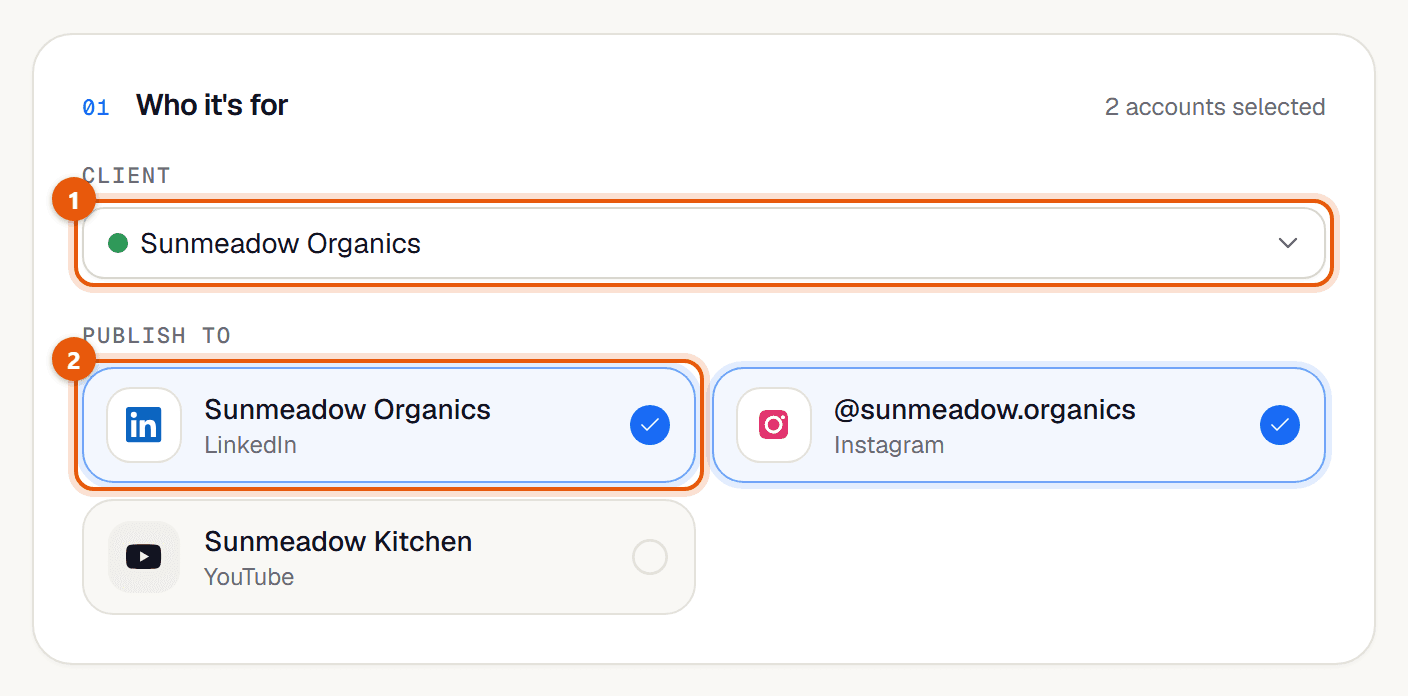
01 Who it's for
Choose the client in Client.
Under Publish to, switch on each account the post should go to. You can pick several, across LinkedIn, Instagram and YouTube.
02 What it says
Pick the kind of post. Text & media works everywhere. Document, Link and Poll are LinkedIn-only, so choosing one switches off non-LinkedIn accounts.
Write the caption in the box. The ring beside it counts characters against the strictest network you picked (LinkedIn 3,000, Instagram 2,200, YouTube 5,000).
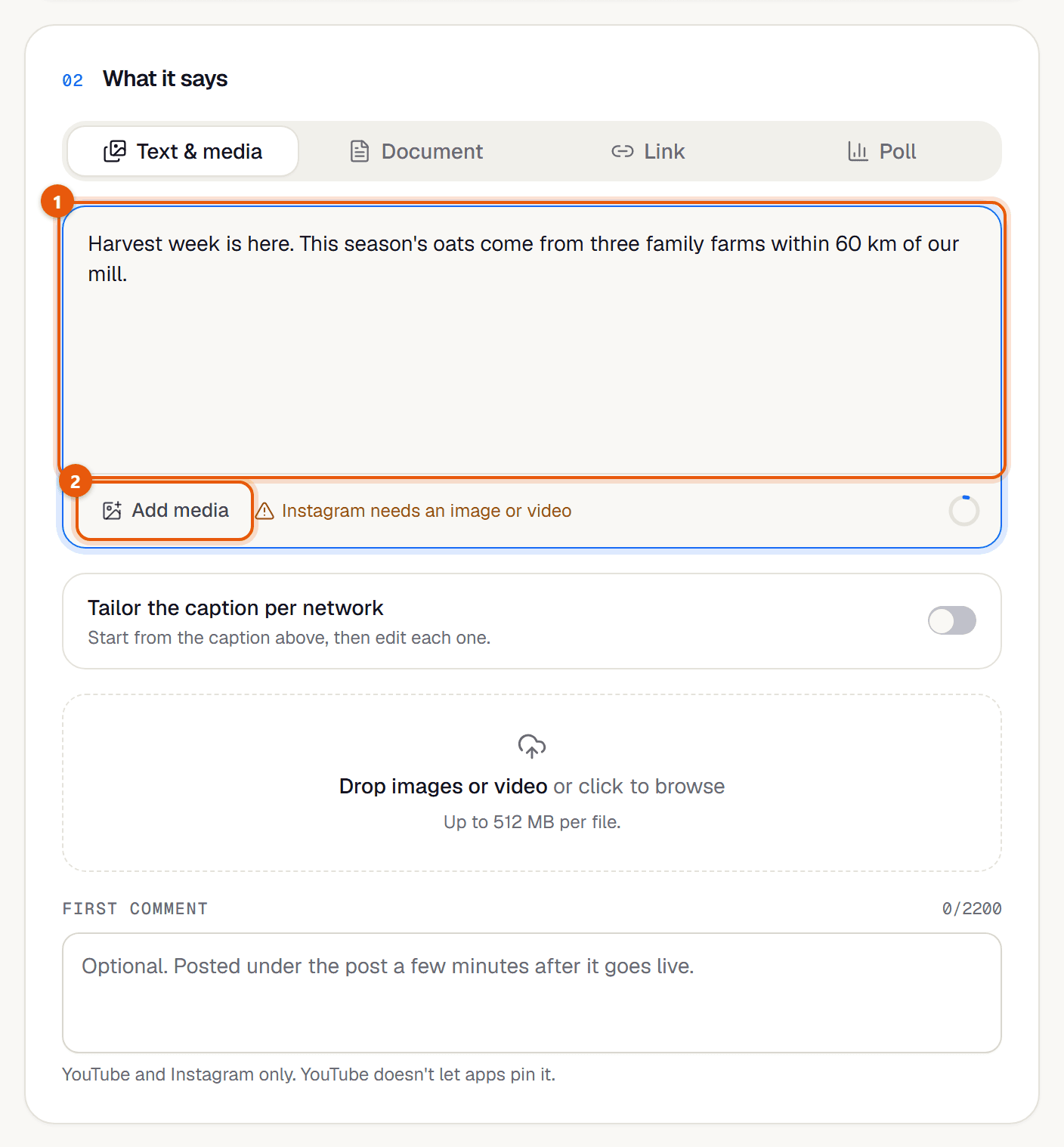
To add pictures or video, click Add media or drop files onto the box. See Media files.
Optional: for YouTube or Instagram, add a First comment. See First comment.
02b YouTube details
This step only appears when a YouTube account is selected. See Posting to YouTube.
03 When it goes out
Click a quick choice (In an hour, Tomorrow 9 AM, Tomorrow 6 PM or Monday 9 AM), or set a date and time in Schedule for.
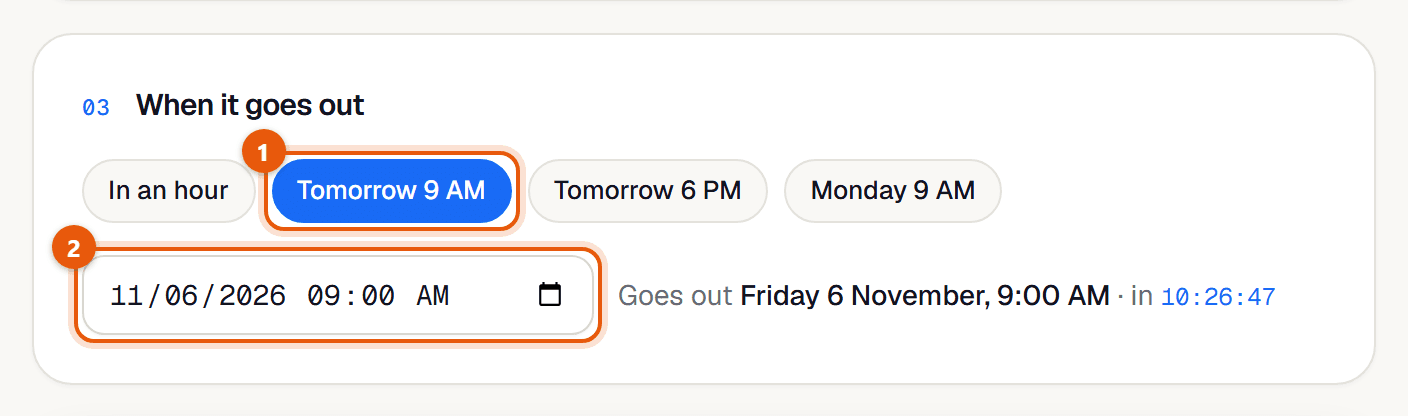
Check the line underneath: it says the exact day and time, and how long until then. Times are in your computer's time zone.
Save it
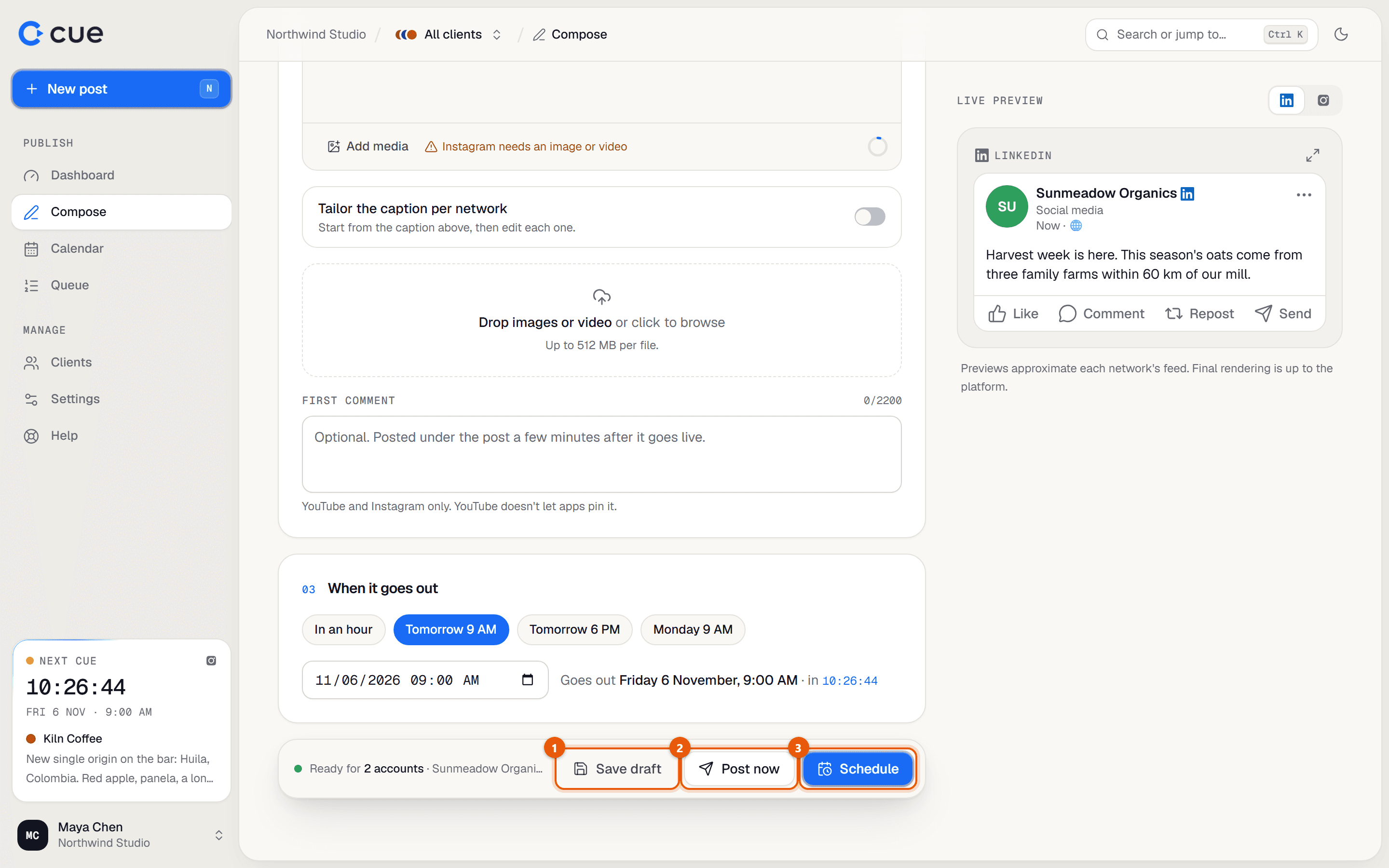
The bar at the bottom tells you what's still missing ("To continue, pick a client…") or confirms "Ready for 2 accounts · Acme Co.". Then choose:
| Button | What happens |
|---|---|
| Schedule | Publishes at the time you set. You land on the calendar. |
| Post now | Publishes straight away, without waiting. |
| Save draft | Keeps it in Cue without publishing. You land on the queue. |
If it doesn't work
- "Pick a client" / "Select at least one account"
- Fill in step 01.
- "Write something first"
- The caption is empty.
- "Acme LinkedIn: caption is over the 3000-character limit"
- Shorten the caption, or tailor a shorter version for that network.
- "Instagram posts need at least one image or video"
- Add media, or switch off the Instagram account.
- "Pick a date and time"
- Fill in step 03, or use Post now.
- "Your … plan includes N posts a month…"
- The workspace has reached its monthly post limit. See Plan and usage.
Related guides
- Draft, Schedule or Post nowThe three ways to save a post, what each one does, and when a scheduled post actually goes out.
- Posting to LinkedInWhat you can post to LinkedIn from Cue: text, images, a video, documents (carousels), link previews and polls.
- Posting to InstagramInstagram needs a picture or a video. Here is how Cue turns what you add into a photo, a carousel or a Reel.
- Posting to YouTubeUpload a video to a client's channel with a title, visibility, category and tags.
- Media filesWhich pictures, videos and documents you can upload, and how big they can be.
Something here wrong or unclear? Email karan@trycue.space.