

Posting to YouTube
Upload a video to a client's channel with a title, visibility, category and tags.
Upload a video
In 01 Who it's for, switch on the client's YouTube account.
In 02 What it says, add exactly the video you want to upload. The caption becomes the video's description.
Step 02b YouTube details appears. Type the Video title (up to 100 characters).
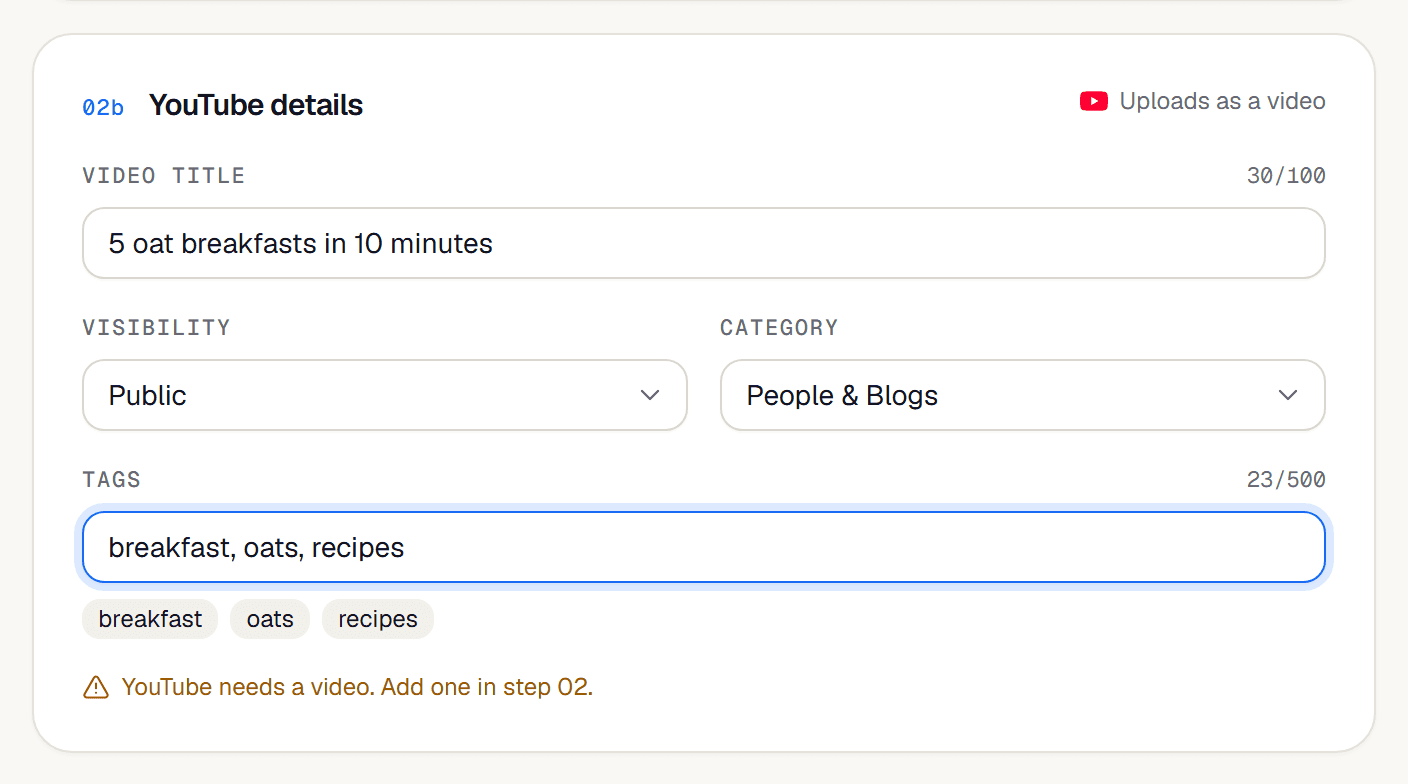
Choose Visibility: Public (anyone), Unlisted (only people with the link) or Private (only the channel).
Pick a Category. The default is People & Blogs.
Add Tags, separated by commas. The counter shows how much of YouTube's 500-character tag budget you've used.
Choose a time in 03 When it goes out and click Schedule.
Good to know
- Description (the caption): up to 5,000 characters.
- Tags can't contain
<or>. Repeated tags are removed. A tag with a space costs a little more of the budget. - YouTube limits how many videos apps can upload: about 6 a day across all of Cue. If uploads start failing late in the day, try again the next day.
- Unverified YouTube channels can only upload videos up to 15 minutes long. Verify the channel on YouTube to lift that.
If it doesn't work
- "YouTube needs a video to upload"
- Add a video in step 02.
- "Add a title for your YouTube video"
- Fill in Video title in step 02b.
- "YouTube connection expired or was revoked…"
- Reconnect the channel on Clients (see Account health), then Retry the post.
Related guides
- Write a postUse the composer's three steps (who it's for, what it says, when it goes out) to write a post and schedule it to one or more accounts.
- First commentHave Cue post a comment under your YouTube video or Instagram post a few minutes after it goes live, for example links or hashtags.
- Connect YouTubeConnect a client's YouTube channel by signing in with the Google account that owns it.
Something here wrong or unclear? Email karan@trycue.space.