

Use the calendar
See every client's posts by week or month, filter them, drag to reschedule, and plan from the Unscheduled drawer.
Views
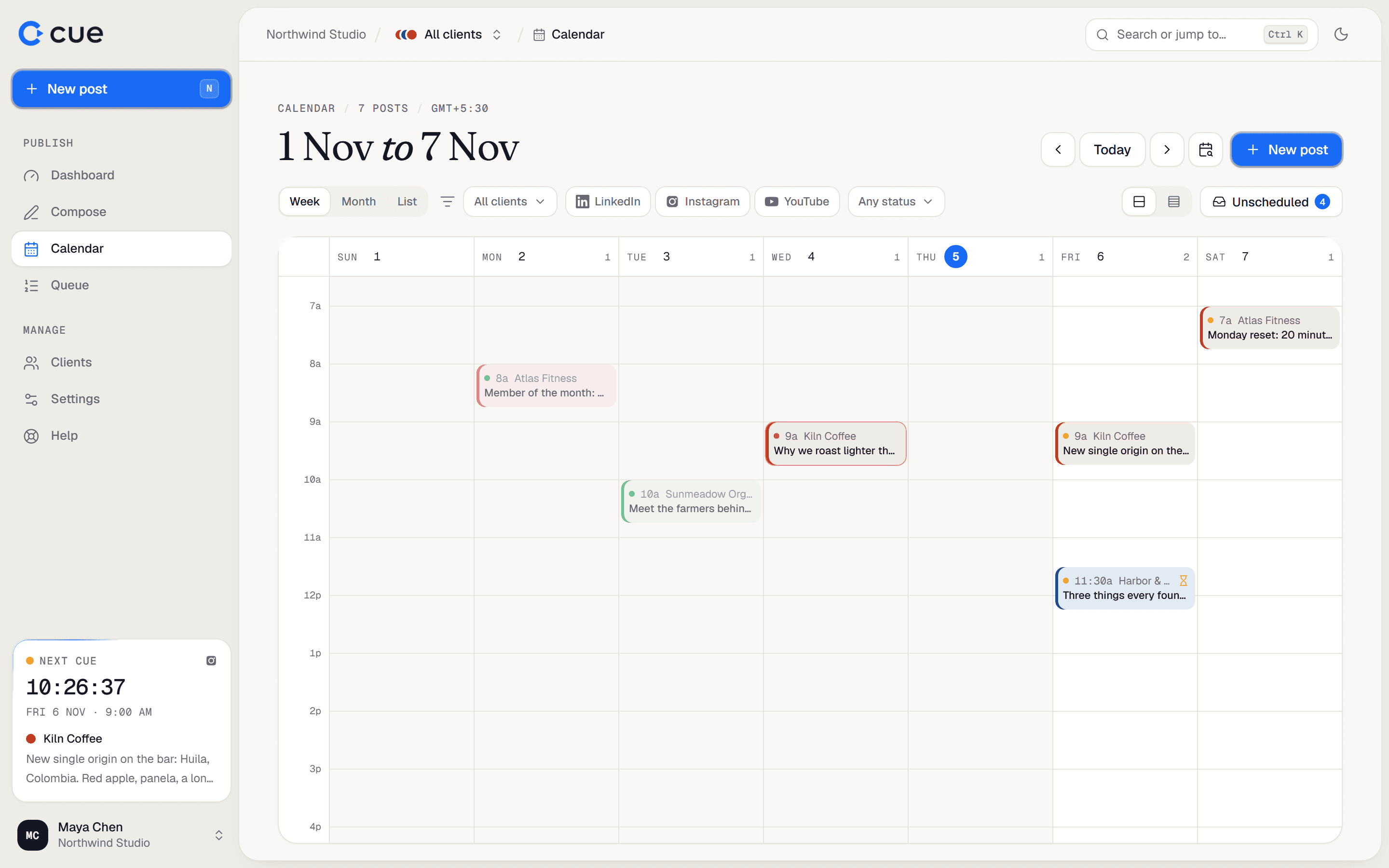
- Use the arrows to go back or forward, Today to return, or pick a date to jump to it.
- On a phone, Week and Month show as a simple list of days.
- Switch between Comfortable and Compact to fit more on screen.
| View | Shows |
|---|---|
| Week (default) | Seven days with times. Best for planning a week in detail. |
| Month | The whole month at a glance. |
| List | Everything coming up over the next six months, in order. |
Filter what you see
- Client: one client, or All clients. This follows the client switcher at the top of the page.
- The network buttons: show only LinkedIn, Instagram or YouTube posts.
- Any status: pick Scheduled, Draft, Published, Failed or Needs approval.
- Clear resets the filters.
Plan posts
Click an empty slot to write a post for that time. The composer opens with the date (and, in week view, the time) filled in.
Drag a post to move it. Hold
Altwhile dropping to copy it as a draft instead. See Edit, move, copy or delete a post.Click a post to see its details: each account's status and any error, plus Edit, Retry, Duplicate, Copy link and Delete.
The Unscheduled drawer
Click Unscheduled (or press U) to see posts that need a decision:
- Needs attention: posts that failed in the last 14 days.
- Waiting for approval: posts in review.
- No date yet: drafts without a time. Drag one onto the calendar to plan it.
Calendar keys
| Press | To |
|---|---|
T | Go to today |
← / → | Previous / next week or month |
W / M / L | Week / Month / List view |
C | Switch density |
U | Open or close Unscheduled |
Related guides
- Edit, move, copy or delete a postChange a scheduled post, move it to another time, copy it, or delete it.
- Use the queueEvery post as a list, in order, with what needs attention at the top. Approve, edit, retry and leave notes here.
- Write a postUse the composer's three steps (who it's for, what it says, when it goes out) to write a post and schedule it to one or more accounts.
Something here wrong or unclear? Email karan@trycue.space.