

Add, edit or delete a client
A client is a brand you post for. Give it a name and a colour, then connect its social accounts.
Add a client
Click Clients in the sidebar.
Click Add client.
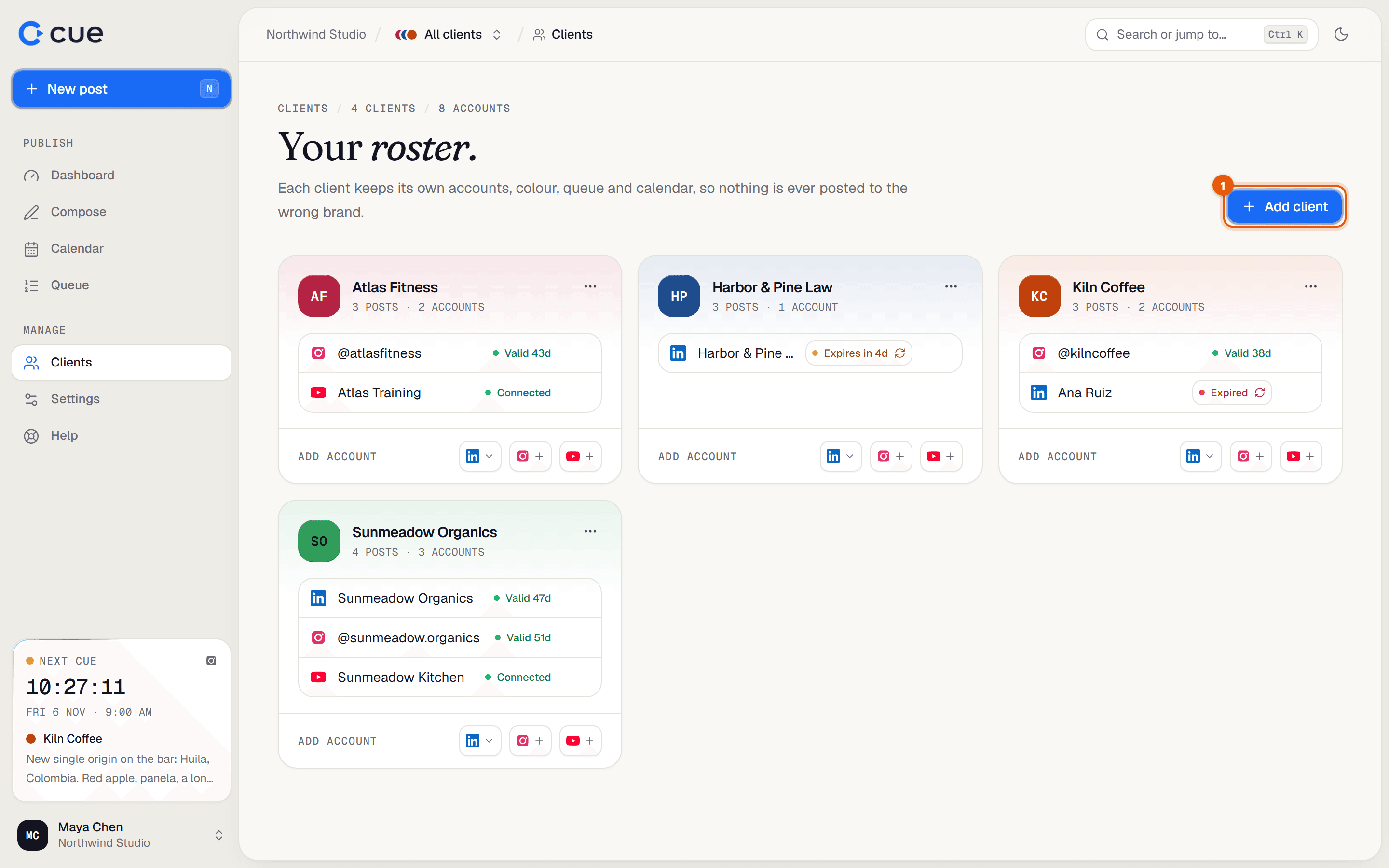
Type the client's name in Name, for example their brand name.
Pick a Colour. It marks this client's posts in the calendar. Click + for any colour you like.
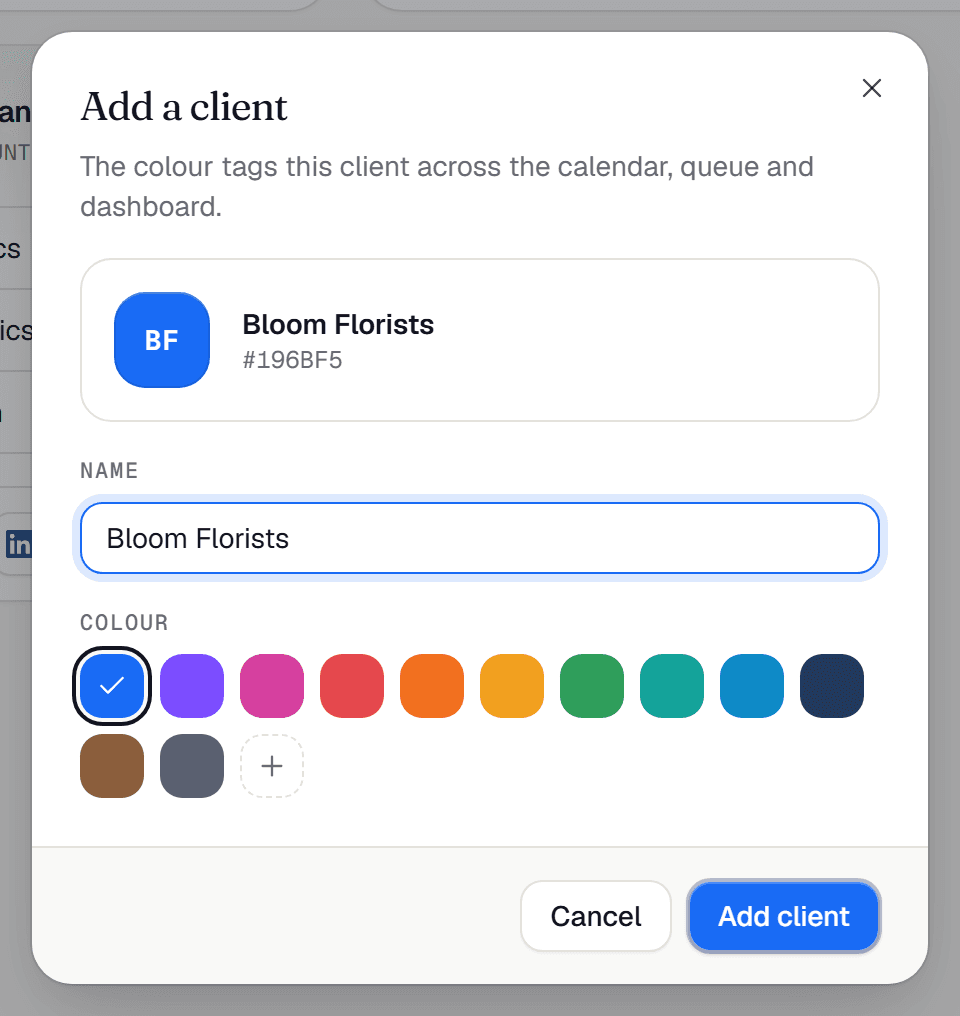
Click Add client. Their card appears on the page.
Rename a client or change its colour
On the client's card, click the ⋯ menu and choose Edit client.
Change the name or colour and click Save changes.
Delete a client
On the client's card, click the ⋯ menu and choose Delete.
Read the message, then click Delete client.
If it doesn't work
- "Your … plan includes N clients, and this would go over it."
- Your workspace's plan has a client limit. See Plan and usage, or contact Cue support to raise it.
Related guides
- Connect LinkedInConnect a client's LinkedIn Company Page or a person's own profile, so Cue can post there.
- Connect InstagramConnect a client's Instagram Business or Creator account. Personal Instagram accounts can't be used.
- Connect YouTubeConnect a client's YouTube channel by signing in with the Google account that owns it.
Something here wrong or unclear? Email karan@trycue.space.